Overview This section describes about the Design Panel which contains a set of buttons to perform all the intended operations.
This section provides you detailed understanding about various functionalities of Design Panel. Making you familiar with the Design Panel screen, it covers all other important functionalities such as creating a new Design Panel, editing a Design Panel, deleting a Design Panel, copying a Design Panel, viewing a Design Panel, and previewing Design Panel.
Using the Design Panel feature, you can create the matrix of buttons and associate operations to that buttons, along with that user can also set the style, margin and globalization for a button in Design Panel. It provides functionality to set the order of the button in the Design Panel as well. There are following topics covered in this section: •Screen Introduction(Design Panel) •Creating a New Design Panel •Editing a Design Panel •Deleting a Design Panel •Copying a Design Panel •Viewing a Design Panel •Previewing a Design Panel •Reordering a Design Button sequence
Screen Introduction (Design Panel) To open the Design Panel Search screen, browse through Administration > POS Customization > Design Panel in iVend Management Console. This screen shows all the available Design Panels. The screen has a button panel containing Search, Clear, New, Edit, Delete, Copy, View and Preview buttons to let users perform respective operation. Refer below illustration showing default Design Panel Search screen.
Creating a New Design Panel This topic describes about how to create a new Design Panel to be used in the layouts.
The Design Panel Search screen contains list of button style from where you can simply select a Design Panel and edit it to save your own custom Design Panel or copy a selected Design Panel to create a new one containing properties of the source panel.
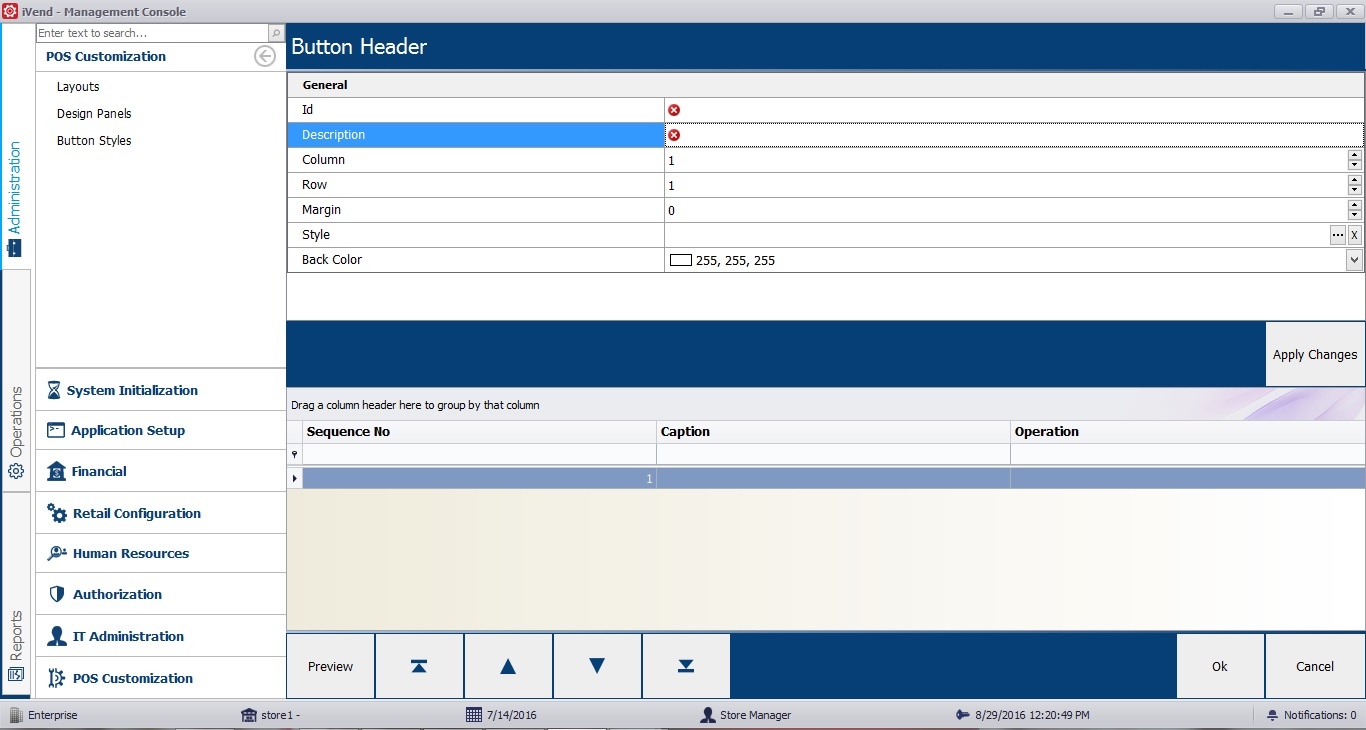
To create a new Design Panel: 1.On the Design Panel Search screen, click the new button or press F3. It opens the Design Panel Screen containing General section along with a grid below to display the Button Matrix. The screen has a button panel containing Preview, First 2.Refer the following mentions helping you to provide appropriate information in the form. oId: Enter an Id for the Design Panel. This field accepts an alphanumeric value. oDescription: Enter a description for the Design Panel. This field accepts an alphanumeric value. oColumn: Click the Up/Down oRow: Click the Up/Down oMargin: Click the Up/Down oStyle: Click the Select oBack Color: Set the Backcolor from Dropdown. After setting all Design Panel properties, click the Apply Changes button to generate buttons with all the properties. Clicking on apply changes reflects the buttons down at below grid. With the use of all the button users can move the button position to Up/Down/First/Last in the button grid accordingly.
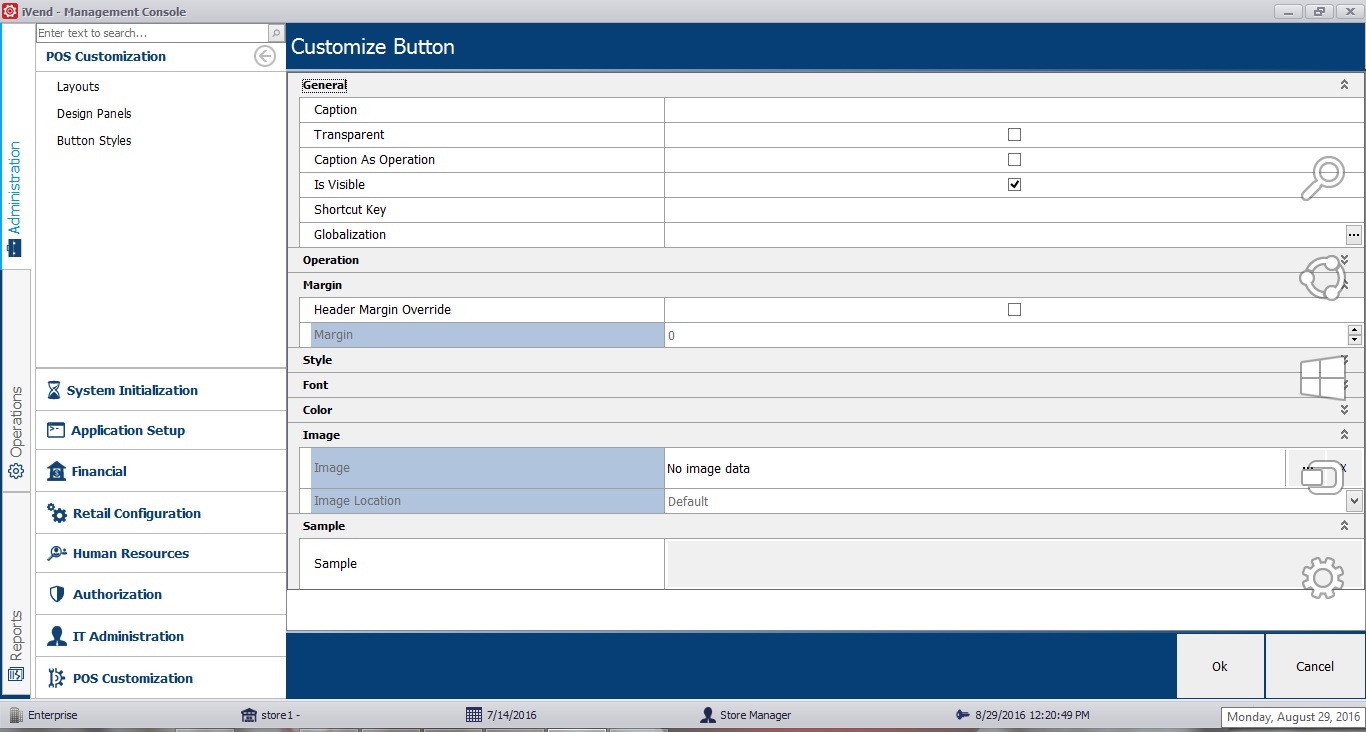
3.To Assign the Operation to each button user can double click on button to open the Customize Button Screen. This Screen containing General, Operation, Margin, Style, Font, Color, Image and Sample sections. Refer the following mentions helping you to provide appropriate information in the form. oCaption: Enter a Caption to be shown for the button. This field accepts an alphanumeric value. oTransparent: Check/ Uncheck to set the button style transparent. oCaption as Operation: Check this field to make button caption name same as the Operation assigned to it. oIsVisible: Check to make button Visible/Invisible. oShortcut Key: Enter a shortcut Key for the operation to be performed by the button. oGlobalization: Set the Globalization caption for the button. oOperation: Select this Operation from the list in the dropdown to be assigned to the button. oHeader Margin Override: Select this checkbox to override the margin set at the Design Panel level. oMargin: Click the Up/Down oStyle: Click the Select oFont Name: Choose a name from the Font Name list. oFont Size: Click the Up/Down oFont Bold: Select this checkbox to make font bold. oFont Italic: Select this checkbox to make font italic. oFont Underline: Select this checkbox to underline the font. oFont StikeThrough: Select this checkbox to strike through the font. oFore Color: Set the Forecolor for the button caption. oBack Color: Set the back color for the button caption oImage: Set the background Image for the Button. oImage Location: Click the Image Location list to choose a location where you want to set the chosen image in the button background. oSample: This field shows the sample button style based on the properties you have set. Click the Ok button to save the customization for the button and you are back to Design Panel screen. Clicking the Cancel button closes the Customize button page aborting the operations.
4.Now you can see the Preview of all the button style in button matrix by clicking Preview button on Design Panel Search screen. 5.Click the Ok button to save the new Design Panel. 6.You can now search for the newly created Design Panel on the Design Panel Search screen.
Refer below illustration for the default design panel screen.
Editing a Design Panel This section describes about how to edit a Design Panel. Editing a design panel allows you edit the design of the panel by editing the no. or rows and columns associated with it and editing the operations associated with the buttons and change the order of the buttons in the panel.
To edit a Design Panel: 1.Browse through Administration > POS Customization > Design Panel to open the Design Panel Search screen. The Design Panel Search screen lists all available Design panel. 2.Select a Panel which you want to Edit. 3.Click the Edit button or press F4. It opens the Design Panel screen with all fields preset. 4.Now, change the specific field you want to change and click on apply changes for the changes to get applied on the grid. 5.To edit a particular button style or operation, Double Click on button in the grid. It opens the Customize Button screen with all preset of the buttons. 6.Click the Ok button to save the new button style and operation. 7.Click on Ok button on design panel screen to save the changes made.
Deleting a Design Panel This section describes about how to delete a Design Panel from the Design Panel Search screen.
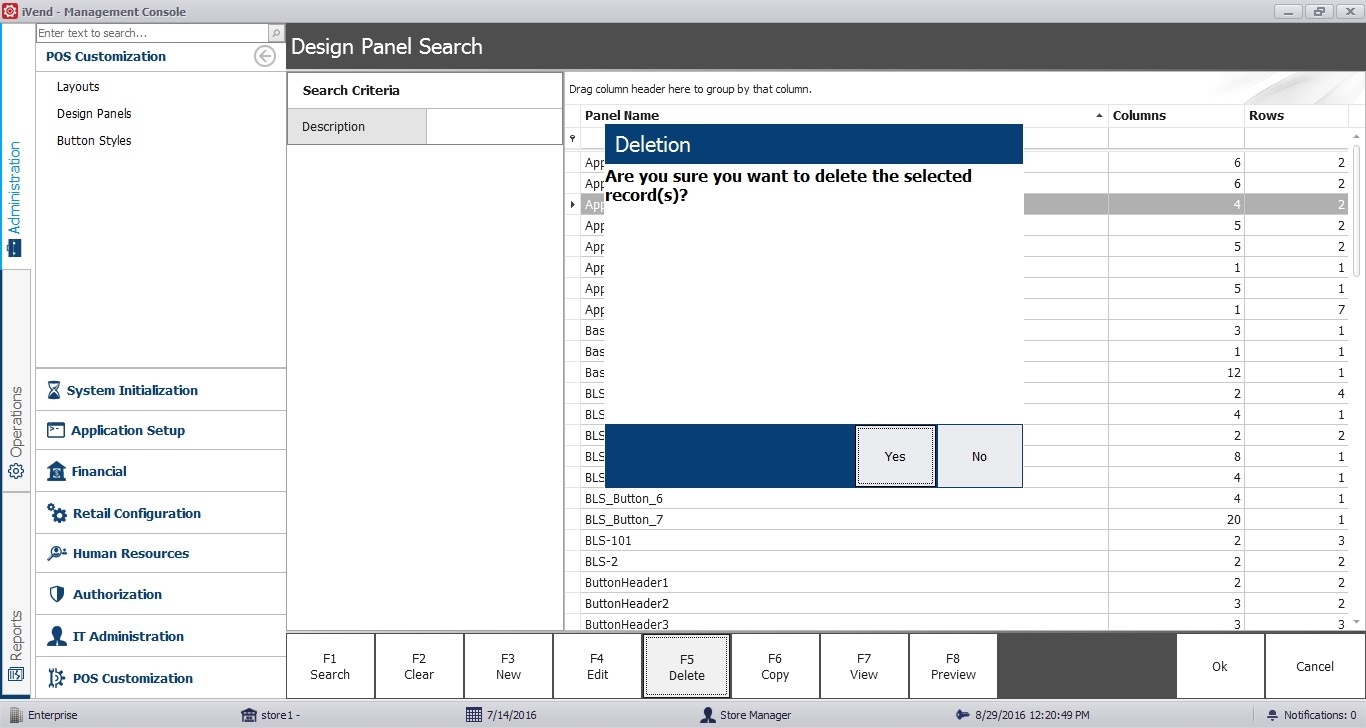
To delete a Design Panel: 1.Browse through Administration > POS Customization > design panel to open the Design Panel Search screen. The design Panel Search screen lists all available Design Panels. 2.Now select a Panel which you want to delete. 3.Then click the Delete button or press F5. A message appears asking for you conformation to delete the selected record. 4.Click the Yes button to delete the button. Note: •You cannot retrieve the Design Panel once you delete it. •The system does not allow you to delete the Design Panel, if it is being associated with the Layout. In case of user trying to delete the Design Panel that has been associated with the Layout, system prompts the error that Button Header cannot be deleted as it is used by the system.
Below is the message that appears on clicking the Delete button.
Copying a Design Panel This section describes about how to copy a design panel. Copying a design panel helps you create another design panel where all the properties are preset according to the source design panel.
To copy a design panel: 1.Browse through Administration > POS Customization > design panel to open the Design Panel Search screen. The Design Panel Search screen lists all available design panels. 2.Select a design panel which you want to copy. 3.Click the Copy button or press F6. It opens the design panel screen with all fields preset (except the Id) according to the source design panel. 4.Now, enter an Id in the Id field for the new design panel. 5.Edit other properties and set new properties as the requirements demand. 6.To Edit the Properties and operations of the button in the panel, go to customize button screen by double clicking on button. 7.Edit the properties and operation for the button and click Ok to save and to get back to design panel screen. 8.Click the Ok button to save the new design panel. You can now search for the newly created design panel on the Design Panel Search screen.
Viewing a Design Panel This section describes about viewing a Design Panel. The View button opens the design panel in view only mode which does not let you make any change to its properties.
To view a design panel: 1.Browse through Administration > POS Customization > design panel to open the design panel Search screen. The design panel Search screen lists all available design panels. 2.Select a design panel which you want to view. 3.Click the View button or press F7. It opens the design panel screen in view only mode. 4.Click the Cancel button to close the screen and return to the Design Panel Search screen.
Previewing a Design Panel This section describes about previewing a Design Panel. The Preview button opens the preview of the design panel with all styles applied on it.
To preview a design panel: 1.Browse through Administration > POS Customization > design panel to open the design panel Search screen. The design panel Search screen lists all available design panels. 2.Select a design panel which you want to view. 3.Click the Preview button or press F8. It opens the preview of the Design Panel. Click the OK button to close the screen and return to the Design Panel Search screen.
Reordering a Design Button Sequence This section describes about reordering of the button associated with a Design Panel. The Edit button opens the design panel screen in edit mode to reorder the buttons.
To reorder buttons in design panel: 1.Browse through Administration > POS Customization > Design Panel to open the Design Panel Search screen. The Design Panel Search screen lists all available Design panel. 2.Select a Panel which you want to edit. 3.Click the Edit button or press F4. It opens the Design Panel screen with all fields preset. 4.Design Panel screen has a button panel containing Preview, First 5.Select the button in the grid and click on the icon buttons to set the position to Up/Down/First/ Last. Click the OK button to close the screen and return to the Design Panel Search screen. |




© CitiXsys 2019. All Rights Reserved.