Navigation: Developers' Guide > Customizing User Interface > FAQs > How To... >


Create a Custom Screen in POS
This topic explains how to create a custom screen in Point of Sale (POS).
There are following steps to create custom design in POS:
1.Create a new project by choosing "Class Library" as project type and name it SampleAddonForPO.
2.Now open the Property tab.
To open the Property tab, right-click on the Project then click Properties.
3.In the Properties tab, keep the Assembly Name and Default Namespace value same as project name and save it.
4.Add the "CXS.Retail.Extensibility.dll" in the Reference.
5.Add a new User Control and name it "POSScreen.cs".
6.Inherit from BasePOSCustomView.
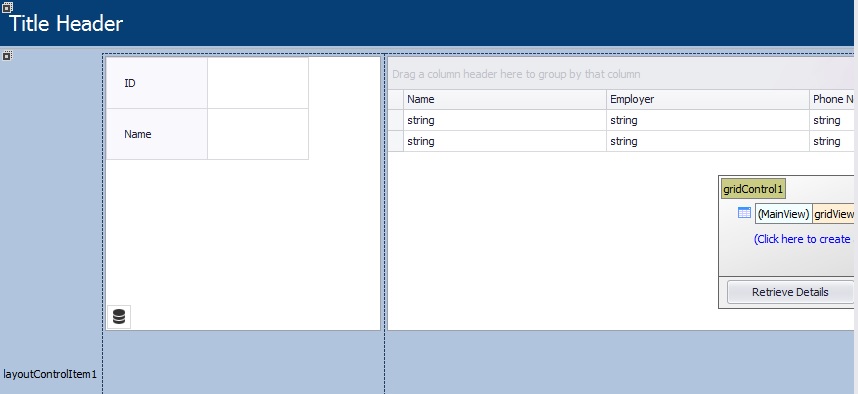
7.Now open the POSScreen.cs in the View Designer mode.
8.You can then drag and drop items from the Toolbox.

|